
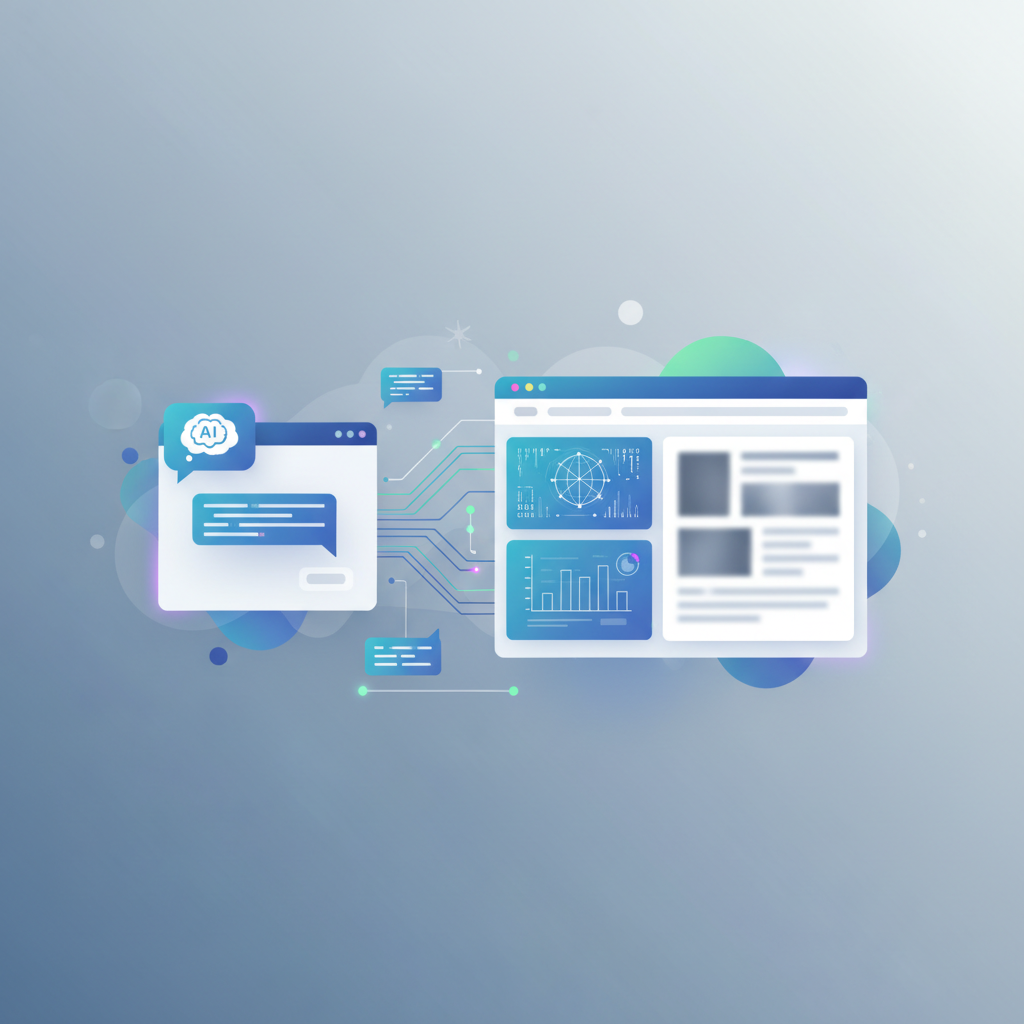
You can now manage WordPress with ChatGPT or Claude directly via MCP. Here’s what that enables, the setup outline, and the access risks worth scoping first.
Table of Contents
Ask Claude to check your published posts for broken links, and it opens each URL, confirms whether the page returns a “not found” error, and reports back only the ones that are dead. That is a meaningfully different experience from copying AI-written text into the WordPress editor by hand, and it is now possible on a self-hosted WordPress site through a plugin called WPVibe, one of several new tools built on a protocol called MCP that lets an AI assistant act directly inside your site rather than talk about it.
What is MCP and how it works with WordPress
Model Context Protocol (MCP) is an open-source standard, originally released by Anthropic version 1.0 in late 2024 and since adopted by OpenAI and Google DeepMind, that defines a secure communication layer allowing AI assistants to connect directly to external software systems and execute actions within defined boundaries.
Applied to WordPress, that means you type an instruction into the same Claude or ChatGPT interface you already use, and the assistant reads your site content and makes the change directly, rather than handing you text to paste in yourself. This won’t work on WordPress.com; on self-hosted WordPress, a plugin acts as the connector, with WPVibe available for the job.
Most people picture one of two things when they hear “AI and WordPress”: a chatbot bolted onto the front end for visitors, or a plugin that adds a generate button to a single screen like the block editor. Both are useful, but both are narrow. The chatbot only talks to visitors. The generate-button plugin is locked to one job, usually writing, and cannot touch your plugin list, your theme templates, or your WooCommerce settings.
Core site maintenance workflows
The appeal is collapsing tasks that used to take many small manual steps into one instruction. A cleanup task like adding alt text to fifty images in a media library, tedious enough that it usually gets skipped, becomes a single request the assistant works through in one pass.
Key maintenance operations handled in one instruction include:
- Checking every published post for a missing meta description
- Verifying which plugins and themes are out of date across a site
- Confirming that permalinks use a readable structure instead of raw post ID numbers
Content work benefits too, though with a caveat to take seriously. An assistant connected this way can draft a post, apply block formatting, assign a category, and ask whether you want it saved as a draft or published live, all from one instruction. That is a time saver for a small team without a dedicated writer. It is also the point where giving an AI agent unsupervised publish access on a live site stops being a convenience question and starts being a risk question.
Access control and risk management
An AI assistant with write access to your WordPress site can do anything a logged-in user with those permissions can do: install plugins, edit templates, change settings, and modify a live page. That is the whole value of the connection, and it is also the reason a scoped, deliberate setup matters more here than it does for a read-only tool.
Key safety habits for connected site assistants:
- Start with a full backup before you connect anything with write access for the first time.
- Use scoped permissions (read-only for some content types, write access only for specific ones like posts) instead of granting blanket access.
- Ask the assistant to save changes as a draft rather than publish directly.
- Treat updating all plugins, themes, and core as an instruction you review the result of immediately afterward.
How to manage WordPress with ChatGPT or Claude: setting it up, in outline
The general shape is the same across the current MCP plugins for WordPress: install and activate the connector plugin on a self-hosted WordPress site with a publicly reachable REST API, then point your AI assistant at the server address the plugin provides. This won’t work on WordPress.com.
Setup steps for major AI assistants:
- Claude: Done through Settings by adding a custom connector and pasting in the plugin’s MCP server URL.
- ChatGPT: Works through its own Plugins directory, though the connection applies per conversation rather than persisting automatically.
- Authorization: Both tools walk you through an authorization step, confirming a 6-digit login code, before the connection goes live. Free plans on both Claude and ChatGPT support this.
Choosing the right foundation for your sites
This kind of tooling matters more the more sites or content you are responsible for. A single small-business site with occasional updates may not need it at all; the value shows up when you are maintaining several sites, or a content library large enough that manual auditing does not happen. For site managers adopting these agentic workflows, reliable server infrastructure is essential for uninterrupted communication between the LLM and the server. AllCloudHost’s WordPress hosting plans support the standard WordPress REST API out of the box, which is the prerequisite this entire category of tool depends on, regardless of which specific AI assistant or connector plugin you end up choosing.
AI assistants moving from a separate writing tool into something that operates inside the systems you run represents a capability upgrade for site maintenance. It is also a reason to treat access scoping as seriously as you would treat it for a new human employee with a login: useful in direct proportion to how deliberately you set the boundaries.
Key Takeaways on How to Manage WordPress With ChatGPT
- To manage WordPress with ChatGPT or Claude, an MCP connection gives the assistant defined actions on your site.
- Scope permissions tightly so a mistake while you manage WordPress with ChatGPT cannot damage the whole site.
- Start with read-only or low-risk tasks when you first manage WordPress with ChatGPT, and widen access only as you build trust.
Further reading: Model Context Protocol.